The Arduino microprocessor is a very affordable embedded systems solution. It costs about $20 per unit, and can be program easily in C. It has easy access to digital input and output pins, as well as analog input pins. In combination with the WiShield it allows for you to control lights, motors, and more over the network as well as monitor temperature, humidity, noise, etc.
This video provides a basic demonstration of controlling three LED lights over the wifi network at my home via a web browser on the iPhone. This provides the very basics of what you need to get started with the WiShield and controlling things over the wireless network.
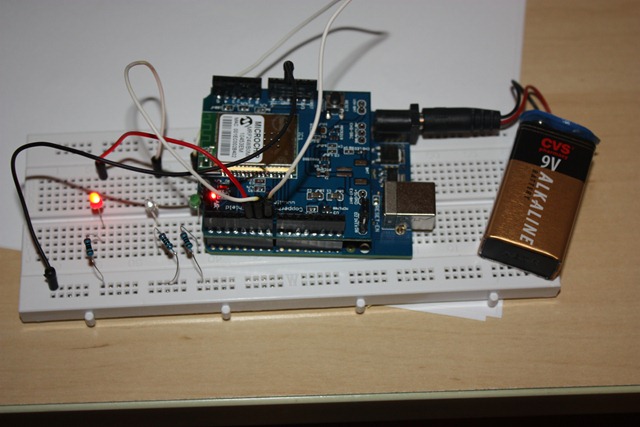
Here is a picture of the Arduino completely disconnected from the computer. It is being powered by a 9Volt battery and is completely portable.
Here is a video demonstrating the Arduino + WiShield in action:
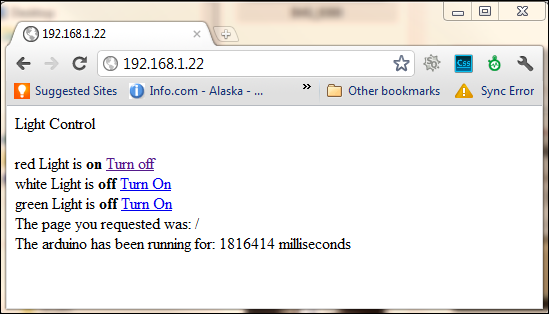
By going to the following webpage on any computer in my home network, I am able to control the state of the lights:
Before giving you the code and circuit layout, let me tell you a little about the journey to this point.
I saw the WiShield on eBay I saw the LinkSprite CuHead WiFi Shield for Arduino for sale for $55 + $5 shipping. I thought it would be worth experimenting with. (As of 7/3/2011 it can still be bought on ebay cgi.ebay.com/ws/eBayISAPI.dll?ViewItem&item=110708459270#ht_2643wt_923) Here is some critical information from the ebay listing:
This is the shield you need to get Wi-Fi connectivity to your Arduino-based project! This shield provides 802.11b connectivity and is a direct drop-on plug-and-play solution to your Arduino Diecimila/Duemilanove/Uno.
Compatible with Asynclab wifi shield!
Shield Features
- Add-on shield built for Arduino Diecimila, Duemilanove and Uno
- Dimensions, shape, even color match exactly!
- True plug-n-play solution
- Uses SPI for host communication (max speed 25MHz)
- All Arduino headers brought out for easy access
- Easy access reset button on-board
- On-board PCB antenna
- Switchable interrupt pin usage between INT0 and digital pin 8
- Switchable LED on digital pin 9
- Switchable CS pin for serial flash between digital pin 10 and digital pin 7[1]
Wi-Fi Module Features
- 802.11b Wi-Fi certified
- 1Mbps and 2Mbps throughput speeds
- Supports both infrastructure (BSS) and ad hoc (IBSS) wireless networks
- Ability to create secured and unsecured networks
- WEP (64-bit and 128-bit)
- WPA/WPA2 (TKIP and AES) PSK
- Low power usage
- Sleep mode: 250μA
- Transmit: 230mA
- Receive: 85mA
Pin Usage
- SPI
- Slave select (SS) : Arduino pin 10 (port B, pin 2)
- Clock (SCK) : Arduino pin 13 (port B, pin 5)
- Master in, slave out (MISO) : Arduino pin 12 (port B, pin 4)
- Master out, slave in (MOSI) : Arduino pin 11 (port B, pin 3)
- Interrupt (Uses only one of the following, depending on jumper setting)
- INT0 : Arduino pin 2 (port D, pin 2)
- DIG8 : Arduino pin 8 (port B, pin 0)
- LED : Arduino pin 9 (port B, pin 1)
- To regain use of this pin, remove the LED jumper cap
- 5V power
- GND
If you setup the serial dataflash CS pin to use pin 10, then the WiFi module will not be usable. In order to use the dataflash and WiFi concurrently, the dataflash jumper CS pin must be set to pin 7.
Download:
Several key things that I should have realized from this listing that would have saved me a lot of time.
First thing I should have read was “Compatible with Asynclab wifi shield!†This would have led me to the AsyncLabs Wiki and would have saved me a lot of time. And it would have led me to download the needed library and example files from the GitHub repository. Installing these files just required putting them in the “libraries†folder under the “arduino†folder on my PC.
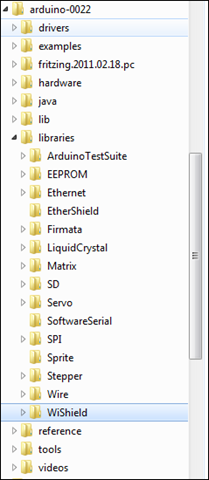
Once I did this, I saw the example sketches (arduino programs) in the IDE:
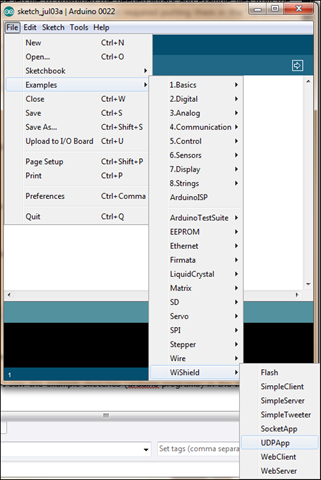
At first none of the examples would work except the “WebServer†example. Everything else gave me compile errors. The missing part was this note on asynclabs.com/wiki/index.php?title=WebServer_sketch:
IMPORTANT NOTE:
The WiShield library includes support for both server and client applications. The individual apps are included as sample sketches but to switch between the two will require rebuilding the WiShield library as it requires reconfiguration of some variables. The library is configured as a webserver by default. To switch between modes:
- Uncomment the appropriate mode, APP_WEBSERVER or APP_WEBCLIENT in the apps-conf.h file in the WiShield directory.
Depending on the mode you want the WiFi module to run, you have to comment out and uncomment out lines in the apps-conf.h file in the WiShield library folder. It continues with this note:
- Delete all the object files (files with an extension of ‘.o’) in the WiShield directory.
- Delete the ‘applet’ directory in the WiShield/examples/WebServer/ or WiShield/examples/WebClient/ directories.
- Restart the Arduino IDE to rebuild the library in the appropriate mode.
I could not find any “.o†files or “applet†directory to delete. I did restart the Arudino IDE, but I am not 100% sure this was required.
At the top of all the examples, there is this section of code that you need to configure for your network:
// Wireless configuration parameters —————————————-
unsigned char local_ip[] = {192,168,1,22}; // IP address of WiShield
unsigned char gateway_ip[] = {192,168,1,1}; // router or gateway IP address
unsigned char subnet_mask[] = {255,255,255,0}; // subnet mask for the local network
const prog_char ssid[] PROGMEM = {“ssid"}; // max 32 bytesunsigned char security_type = 3; // 0 – open; 1 – WEP; 2 – WPA; 3 – WPA2
// WPA/WPA2 passphrase
const prog_char security_passphrase[] PROGMEM = {"passphrase"}; // max 64 characters// WEP 128-bit keys
// sample HEX keys
prog_uchar wep_keys[] PROGMEM = { 0x01, 0x02, 0x03, 0x04, 0x05, 0x06, 0x07, 0x08, 0x09, 0x0a, 0x0b, 0x0c, 0x0d, // Key 0
0x00, 0x00, 0x00, 0x00, 0x00, 0x00, 0x00, 0x00, 0x00, 0x00, 0x00, 0x00, 0x00, // Key 1
0x00, 0x00, 0x00, 0x00, 0x00, 0x00, 0x00, 0x00, 0x00, 0x00, 0x00, 0x00, 0x00, // Key 2
0x00, 0x00, 0x00, 0x00, 0x00, 0x00, 0x00, 0x00, 0x00, 0x00, 0x00, 0x00, 0x00 // Key 3
};
Set the IP address and the default gateway according to your network. The SSID needs to be replaced with the name of your wifi network.
The “security_type†needs to be set according to your network. It supports “openâ€, “WEPâ€, “WPAâ€, and “WPA2â€. On my network, I run WPA2, so I set this to “3†as indicated in the comment by this value in the code above.
WPA2 only requires a passphrase, which I put where it says {“passphraseâ€} above.
Now for the example. Let’s get the wiring done first. I hooked up three LEDs each has a 200 ohm resistor and then connected to ground. The positive pin of the LED I have hooked up to pin 7 for green, pin 6 for white/blue, pin 5 for red. I originally tried pin 2, but this pin is used by the WiShield and would not work. (That is the other piece of critical information that I needed from the eBay listing, which pins are being used.)
Now here is the code for the project, (minus all the security information for my network):
/*
* A simple sketch that uses WiServer to serve a web page
*/
#include <WiServer.h>
#define WIRELESS_MODE_INFRA 1
#define WIRELESS_MODE_ADHOC 2
// Wireless configuration parameters —————————————-
unsigned char local_ip[] = {192,168,1,22}; // IP address of WiShield
unsigned char gateway_ip[] = {192,168,1,1}; // router or gateway IP address
unsigned char subnet_mask[] = {255,255,255,0}; // subnet mask for the local network
const prog_char ssid[] PROGMEM = {"ssid"}; // max 32 bytes
unsigned char security_type = 3; // 0 – open; 1 – WEP; 2 – WPA; 3 – WPA2
// WPA/WPA2 passphrase
const prog_char security_passphrase[] PROGMEM = {"passphrase"}; // max 64 characters
// WEP 128-bit keys
// sample HEX keys
prog_uchar wep_keys[] PROGMEM = { 0x01, 0x02, 0x03, 0x04, 0x05, 0x06, 0x07, 0x08, 0x09, 0x0a, 0x0b, 0x0c, 0x0d, // Key 0
0x00, 0x00, 0x00, 0x00, 0x00, 0x00, 0x00, 0x00, 0x00, 0x00, 0x00, 0x00, 0x00, // Key 1
0x00, 0x00, 0x00, 0x00, 0x00, 0x00, 0x00, 0x00, 0x00, 0x00, 0x00, 0x00, 0x00, // Key 2
0x00, 0x00, 0x00, 0x00, 0x00, 0x00, 0x00, 0x00, 0x00, 0x00, 0x00, 0x00, 0x00 // Key 3
};
// setup the wireless mode
// infrastructure – connect to AP
// adhoc – connect to another WiFi device
unsigned char wireless_mode = WIRELESS_MODE_INFRA;
unsigned char ssid_len;
unsigned char security_passphrase_len;
// End of wireless configuration parameters —————————————-
int redState = 0;
int whiteState = 0;
int greenState = 0;
int redPin = 5;
int whitePin = 6;
int greenPin = 7;
// This is our page serving function that generates web pages
boolean sendMyPage(char* URL) {
if (strcmp(URL, "/red") == 0) redState = !redState;
if (strcmp(URL, "/white") == 0) whiteState = !whiteState;
if (strcmp(URL, "/green") == 0) greenState = !greenState;
digitalWrite(redPin, redState);
digitalWrite(whitePin, whiteState);
digitalWrite(greenPin, greenState);
// Check if the requested URL matches "/"
// if (strcmp(URL, "/") == 0) {
// Use WiServer’s print and println functions to write out the page content
WiServer.print("<html>");
WiServer.print("Light Control<br><br>");
printLightStatus("red", redState);
printLightStatus("white", whiteState);
printLightStatus("green", greenState);
WiServer.print("The page you requested was: ");
WiServer.print(URL);
WiServer.print("<br>The arduino has been running for: ");
WiServer.print(millis());
WiServer.print(" milliseconds<br>");
WiServer.print("</html>");
// URL was recognized
return true;
//}
// URL not found
return false;
}
void printLightStatus( String lightName, int lightState) {
WiServer.print(lightName);
WiServer.print(" Light is ");
if(lightState ==0) {
WiServer.print(" <b>off</b> <a href=/");
WiServer.print(lightName);
WiServer.print(">Turn On</a><br>");
} else {
WiServer.print(" <b>on</b> <a href=/");
WiServer.print(lightName);
WiServer.print(">Turn off</a><br>");
}
}
void setup() {
// Initialize WiServer and have it use the sendMyPage function to serve pages
WiServer.init(sendMyPage);
// Enable Serial output and ask WiServer to generate log messages (optional)
Serial.begin(57600);
WiServer.enableVerboseMode(true);
pinMode(redPin, OUTPUT);
pinMode(whitePin, OUTPUT);
pinMode(greenPin, OUTPUT);
}
void loop(){
// Run WiServer
WiServer.server_task();
delay(10);
}
Several other things to note. On the board it says “Copperhead WiFi Shieldâ€. However, on the net, it is referred to only as “CuHead Wifi Shieldâ€. (Cu being the atomic symbol for Copper. This was very frustrating, as I could not find any information about the Copperhead Wifi Shield…. Lots of stuff on Copperheads but nothing related to WiFi or Arduinos 🙂 ). Also, it has the link www.linksprite.com on the board, but I found the AsyncLabs.com to be the place to get my answers.
If you find a cheaper place to get the WiShield, please leave a comment and let me know. It would open up a whole lot more possibilities if it was possible to get WiFi connectivity in the $20 range.
Also, if you know some really cool projects using the WiShield, let me know that too.