You want to be able to create slideshows and lists of pictures within a post on a WordPress site? There are many solutions available. One of them that meets my needs is the NextGEN Gallery WordPress plugin.
Features
- Templates : You can add custom templates for your theme.
- Media RSS feed : Add the Cooliris Effect to your gallery
- Role settings : Each gallery has a author
- AJAX based thumbnail generator : No more server limitation during the batch process
- Copy/Move : Copy or move images between galleries
- Sortable Albums : Create your own sets of images
- Upload or pictures via a zip-file (Not in Safe-mode)
- Watermark function : You can add a watermark image or text
- JavaScript Effect : Use any available popular image effect : Shutter, Thickbox, Lightbox or Highslide
- Multiple CSS Stylesheet : Use a nice shadow effect for your thumbnails with your own CSS file
- Slideshow : Full integrated slideshow as jQuery or Flash solution
- TinyMCE : Button integration for easy adding the gallery tags
- Sidebar Widget : Show a slideshow, random or recent picture at your sidebar
- Language support : Translated in more than 30 languages
- Translation downloader : Download with one click the new translation file
- Upload tab integration : You have access to all pictures via the upload tab
- Tag support for images : Append related images to your post, create a image tag-cloud
- Meta data support : Import EXIF, IPTC or XMP meta data
- Sort images feature
- Support for XML Sitemaps : Add Images to your sitemaps with the WordPress SEO by Yoast plugin
How to Install
1) Log into your WordPress dashboard.
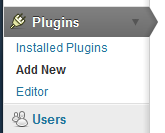
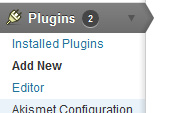
2) Go to Plugins->Add New
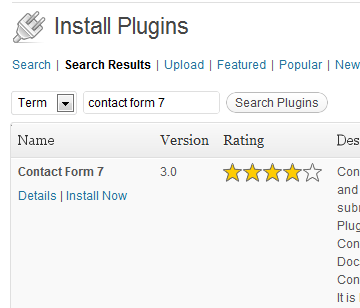
3) Type “NextGen Gallery†into the search box and click “Search Pluginsâ€

4) “NextGen Gallery†by Alex Rabe should be the first item. The search results may change, so make sure you are installing the right thing.
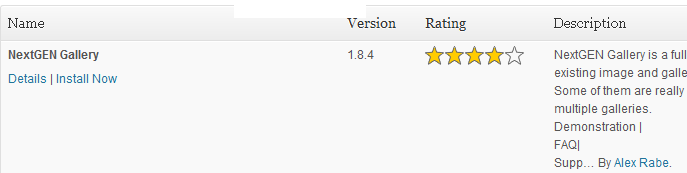
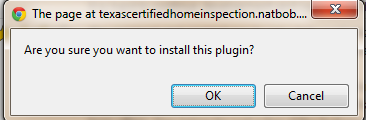
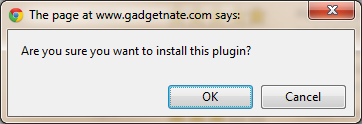
5) Click on “Install Now†and click “OK†on the confirmation screen:
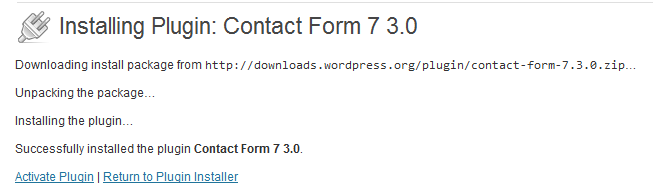
6) Click “Activate Pluginâ€
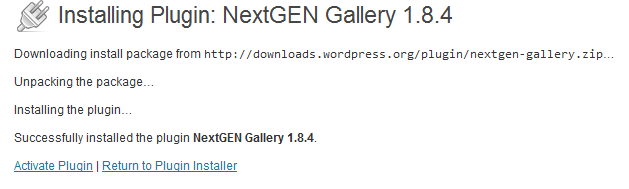
7) Now the NextGen Gallery WordPress plugin should be installed, activated, and ready to go…

How to Use
There are many ways to use this plugin. I’m going to show you how I created a gallery and used a short code to insert it into a post.
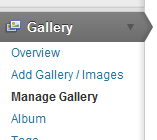
1) Go to the new “Gallery†section on your wordpress menu:
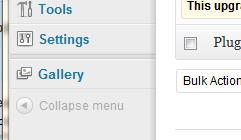
2) Click Add Gallery/Images
3) Give the Gallery a name. (For this example, I have 9 pictures of street views that I have taken. So I am calling it “street viewsâ€)
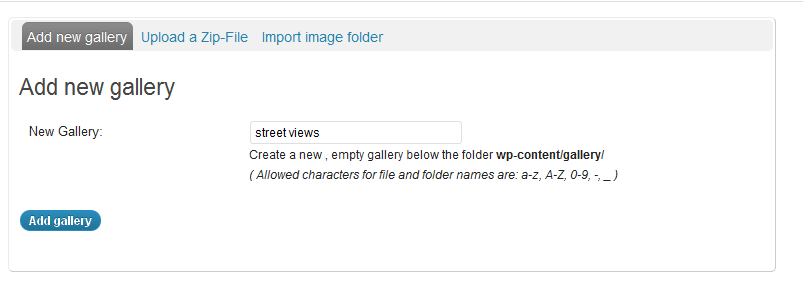
4) Click “Add Galleryâ€
5) Now it is time to upload the pictures. You can choose to upload pictures individually, or you can zip them up and upload one zip file. There are several options available here, and I recommend exploring them all. For this example, I am going to use the Upload a Zip-File.
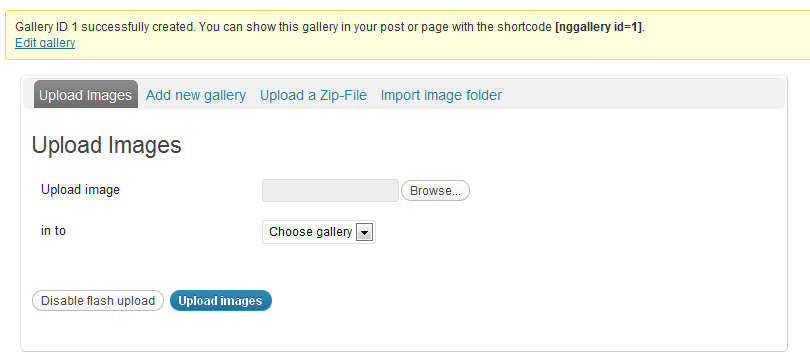
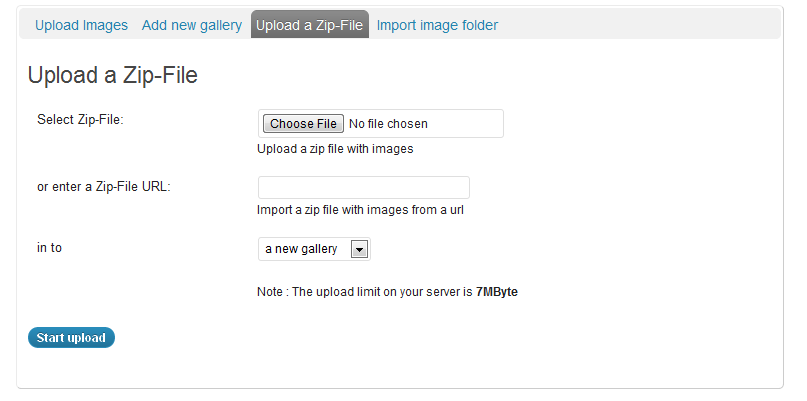
6) Click on “Upload a Zip-Fileâ€. Click “choose file†and then click start Upload.
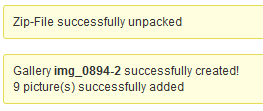
7) Now let’s view the Gallery. Click on Manage Gallery. And Click on Street views
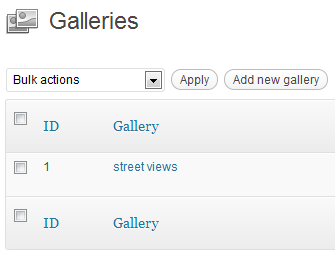
8) Here you can see all the pictures in the gallery. Make adjustments such as rotating, caption, name, tags, exclude pictures, sort, etc.
9) Now let us insert this gallery into the post. For this, we need to know the Gallery Id. Which we can see in the list of Galleries. This one is ID 1. Type the short code below to insert this gallery.

Here is the results:
[nggallery id=1]
There are many, many more features that I did not cover. But this makes it very simple to add photoslide shows any place you want on your wordpress site.
If there are favorite features you use of this plugin, please leave a comment. Also, if there are other plugins that you would recommend then leave a comment about that as well.